

Linux
Understand the kernel, users and groups, file system, permissions and command line. Build a small Linux workspace as you learn.
Linux is useful whether you want to deploy a website, investigate a server or solve your first security lab. Start by understanding what a command changes, then make the smallest change you can explain.
Before You Start
- A Linux terminal in a virtual machine, a Linux computer or Windows Subsystem for Linux.
- A normal user account and a text editor. Run the examples in your own home directory.
YOUR LEARNING ORDER
Learn, Practise and Build
- Understand the System
Read the kernel, distribution and open-source sections. Choose a VM or existing Linux environment.
- Install and Manage Software
Follow the installation and package-manager sections for your chosen distribution.
- Practise Files and Permissions
Create disposable files, inspect permissions and explain each change before making it.
- Use the Shell and Keep Learning
Try the command-line examples, then use the complete resources and books lists.
Your project: Create a workspace containing a system inventory, a private notes file, a sample service log and a script that summarises that log. Keep the output and your explanation beside each exercise.
Go to the practice projectSECTION 01
What is Linux?
Linux is a free and open-source Unix-like kernel. A Linux distribution combines it with utilities and applications to form an operating system. It was created by Linus Torvalds in 1991 and has since grown into a popular alternative to proprietary operating systems like Windows and macOS.
One of the key features of Linux is its open-source nature, which means that the source code for the operating system is freely available and can be modified and distributed by anyone. This has led to a large community of developers contributing to the development and improvement of Linux.
Linux is known for its stability, security, and flexibility, and is widely used in servers, supercomputers, embedded systems, and other applications. It supports a wide range of hardware architectures and comes with a variety of software tools and applications, many of which are also open source.
The Linux operating system comprises several different pieces :
- Bootloader : The software that manages the boot process of your computer. For most users, this will simply be a splash screen that pops up and eventually goes away to boot into the operating system.
- Kernel : This is the core of the Linux operating system, which interacts with the hardware and manages system resources such as memory, CPU, and storage. The kernel is the lowest level of the OS.
- Init System : This is a sub-system that bootstraps the user space and is charged with controlling daemons. One of the most widely used init systems is systemd? which also happens to be one of the most controversial. It is the init system that manages the boot process, once the initial booting is handed over from the bootloader (i.e., GRUB or GRand Unified Bootloader).
- Daemons : These are background services (printing, sound, scheduling, etc.) that either start up during boot or after you log into the desktop.
- Shell : This is the interface between the user and the operating system, which allows the user to interact with the system by typing commands and receiving feedback.
- Graphical Server : This is the display-system component. Modern desktops may use Wayland or the X Window System; the exact components depend on the distribution.
- Utilities : These are the software tools that perform specific tasks, such as managing files and directories, processing data, and communicating with other systems.
- Desktop Environment : This is the piece that the users actually interact with. There are many desktop environments to choose from (GNOME, Cinnamon, Mate, Pantheon, Enlightenment, KDE, Xfce, etc.). Each desktop environment includes built-in applications (such as file managers, configuration tools, web browsers, and games).
- Applications : These are the software programs that run on top of the operating system and provide specific functionality to the user, such as word processors, web browsers, and media players.
Together, these different pieces of the Linux operating system work together to provide a powerful, flexible, and customizable platform for computing.
SECTION 02
Why Use Linux?
There are many reasons why someone might choose to use Linux, including :
- Cost : Linux is free and open-source, which means that it can be downloaded, installed, and used at no cost.
- Security : Linux is known for its security features, which include regular updates and patches, built-in firewalls, and user permissions that help to prevent unauthorized access and malware attacks.
- Stability : Linux is known for its stability and reliability, which means that it can run for long periods of time without crashing or needing to be rebooted.
- Flexibility : Linux is highly customizable, which means that it can be tailored to the needs of the user, including customizing the interface, installing specific software packages, and modifying the source code.
- Compatibility : Linux is compatible with a wide range of hardware architectures, which means that it can be used on many different types of devices, including servers, desktops, laptops, and mobile devices.
- Support : Linux has a large and active community of developers, users, and contributors who provide support, documentation, and resources to help users learn and use Linux effectively.
Overall, Linux is a powerful and flexible operating system that provides many benefits to users, including cost savings, security, stability, and customization options.
SECTION 03
Open-Source
Linux is also distributed under an open source license. Open-source follows these key tenants :
- The freedom to run the program, for any purpose.
- The freedom to study how the program works, and change it to make it do what you wish.
- The freedom to redistribute copies so you can help your neighbor.
- The freedom to distribute copies of your modified versions to others.
These points are crucial to understanding the community that works together to create the Linux platform. Without a doubt, Linux is an operating system that is ?by the people, for the people?. These tenants are also a main factor in why many people choose Linux. It?s about freedom and freedom of use and freedom of choice.
SECTION 04
What is a Distribution?
A Linux distribution, often called a distro, is a complete operating system that is based on the Linux kernel and includes a collection of software tools, utilities, applications, and a desktop environment.
Each Linux distribution is unique and tailored to meet the needs of a particular group of users or use case. Some examples of Linux distributions include :
- Ubuntu : This is a popular Linux distribution that is based on Debian and is designed for ease of use and desktop computing.
- Red Hat Enterprise Linux : This is a commercial Linux distribution that is designed for enterprise computing, with a focus on stability, security, and support.
- Fedora : This is a community-driven Linux distribution that is designed for developers, with a focus on cutting-edge software and tools.
- Debian : This is a stable and widely used Linux distribution that is known for its reliability and package management system.
- Arch Linux : This is a lightweight and highly customizable Linux distribution that is designed for advanced users who want full control over their system.
- CentOS : CentOS Linux was a downstream rebuild of Red Hat Enterprise Linux and has reached end of life. CentOS Stream is the separate upstream development stream for RHEL; use a supported release and check its lifecycle.
Each distribution has a different take on the desktop. Some opt for very modern user interfaces (such as GNOME and Elementary OS’s Pantheon), whereas others stick with a more traditional desktop environment (openSUSE uses KDE).
You can check out the top 100 distributions on the Distrowatch
SECTION 05
Which Distribution is Right for You?
Choosing the right Linux distribution depends on your needs and preferences, as each distribution has its own strengths and weaknesses. Here are some factors to consider when choosing a Linux distribution :
- Purpose : Determine what you will be using Linux for, whether it's personal computing, web development, server administration, or other purposes.
- Skill Level : Consider your level of experience with Linux and your comfort level with using the command line interface.
- Hardware : Consider the hardware requirements of the distribution, including processor speed, memory, and storage.
- Support : Look for a distribution with good community support, documentation, and resources.
- Desktop Environment : Consider the user interface and desktop environment of the distribution, such as GNOME, KDE, or XFCE.
- Package Management : Consider the package management system of the distribution, including the availability of software packages and ease of installation.
- Security : Consider the security features of the distribution, including regular updates and patches, built-in firewalls, and user permissions.
Once you have considered these factors, you can research different Linux distributions and try them out using live CDs or virtual machines. Some popular Linux distributions include Ubuntu, Fedora, Debian, and supported CentOS Stream releases, but there are many other distributions available to choose from. Ultimately, the best Linux distribution for you will depend on your individual needs and preferences.
SECTION 06
Installing Linux
Installing Linux can be done in several ways :
- As Core Operating System : This involves replacing your existing operating system with Linux, making it the primary operating system on your computer.
- Dual Boot: This involves installing Linux alongside your existing operating system (windows or any other linux os), allowing you to choose which one to boot into.
- Virtual Machine: A virtual machine creates a simulated computer environment within your current operating system, making it a convenient way to try out Linux without affecting your main system.
Installation Process :
The process of installing Linux depends on the specific distribution you choose, but here are some general steps that can guide you through the process :
- Choose a distribution : Select the Linux distribution that best suits your needs and download the ISO image file from the distribution's website.
- Create installation media : Burn the ISO image file to a USB drive or DVD to create installation media.
- Boot from the installation media : Insert the installation media into your computer and boot from it. This may require changing the boot order in your BIOS settings.
- Start the installer : Once the installation media has booted, start the installer and follow the on-screen instructions to select your language, time zone, and keyboard layout.
- Partition your hard drive : The installer will prompt you to partition your hard drive, which involves dividing it into sections for the operating system, applications, and data.
- Install Linux : Follow the installer's instructions to install Linux to the partition you have created. You may be asked to create a user account and set a password.
- Complete the installation : Once the installation is complete, remove the installation media and reboot your computer.
- Configure your system : Follow the on-screen instructions to configure your system settings, including network, display, and user preferences.
- Install additional software : Depending on your needs, you may want to install additional software packages using your distribution's package manager.
These are general steps and the exact process may vary depending on the distribution you choose. It is important to carefully read the documentation and follow the instructions provided by the distribution to ensure a successful installation. That’s it. Once the system has completed the installation, reboot and you’re ready to go.
SECTION 07
Installing Software On Linux
Using App Store :
Installing software on Linux is typically done through the distribution's package manager. :
- Open the package manager : Open the package manager for your distribution. This may be called "Software Center", "Package Manager", or "Add/Remove Software".
- Search for the software : Use the search function to find the software you want to install. You can search by name, keyword, or category.
- Select the software : Select the software you want to install from the search results.
- Install the software : Click the "Install" button to install the software. You may be prompted to enter your administrator password.
- Wait for the installation to complete : The package manager will download and install the software and any required dependencies.
- Launch the software : Once the installation is complete, you can launch the software from the application menu or by typing its name in the terminal.
Some Linux distributions may have different package managers, but the general process is similar. It is important to use the package manager to install software, as this ensures that the software is compatible with your distribution and that any security updates or bug fixes will be automatically applied.
Using Command Line Interface :
You can also install software on Linux using the command line interface. Here are the general steps :
- Open the terminal : Open the terminal application on your Linux distribution.
- Search for the software : Use the package manager's search command to find the software you want to install. For example, to search for the "nmap" network mapper, you would type :
apt search nmapThis will display a list of packages that match your search query.
- Install the software : Use the package manager's install command to install the software. For example, to install the "nmap" network mapper, you would type :
sudo apt install nmapThe sudo command is added because you need super user privileges in order to install software. You may be prompted to enter your administrator password.
- Wait for the installation to complete : The package manager will download and install the software and any required dependencies.
Similarly, to install the same software on a Fedora-based distribution, you would first su to the super user (literally issue the command su and enter the root password), and issue this command :
sudo dnf install wget- Launch the software : Once the installation is complete, you can launch the software from the terminal by typing its name.
Using the command line to install software can be faster and more efficient than using a graphical package manager, especially for experienced Linux users. However, it does require familiarity with the Linux command line interface and package management system.
SECTION 08
File Permissions
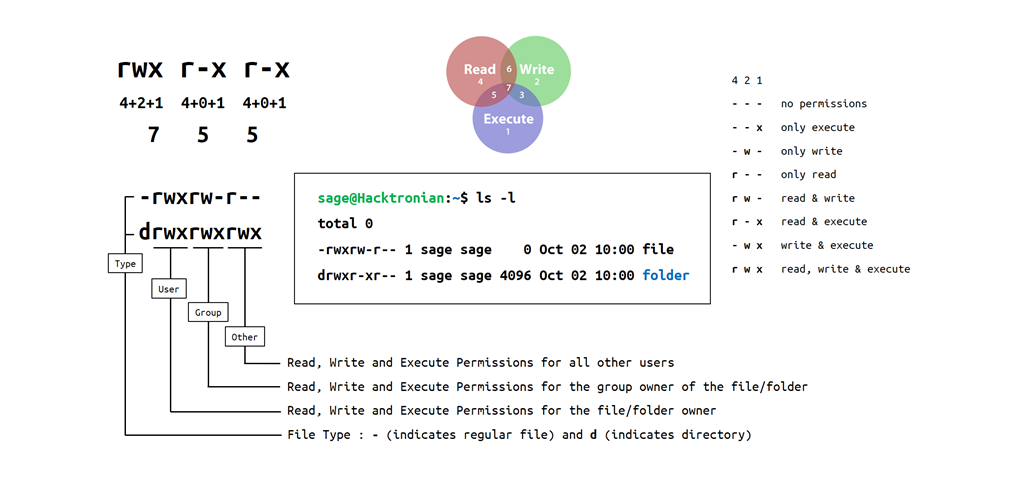
In Linux, file permissions determine who can access and modify files on the system. There are three types of permissions : read, write, and execute. These permissions are assigned to three types of users : the file owner, the group owner, and all other users.
 Open full-size image ↗
Here is a breakdown of the permissions :
- Read Permission : Allows a user to view the contents of a file or directory.
- Write Permission : Allows a user to modify the contents of a file or directory, including deleting or renaming it.
- Execute Permission : Allows a user to execute a file, which means running it as a program or script.
Each file and directory on a Linux system has a set of permissions that can be viewed and modified using the ls and chmod commands, respectively.
The ls command is used to display information about files and directories. The output includes a list of files or directories, along with their permissions, ownership, and other attributes.
The chmod command is used to modify file permissions. It can be used to grant or revoke permissions for the owner, group, and other users.
The syntax for using the chmod command is as follows :
chmod [permissions] [file or directory]The permissions are specified using a three-digit number, where each digit represents the permissions for the owner, group, and other users, respectively. The permissions are assigned using the following values :
- 4 : Read Permission
- 2 : Write Permission
- 1 : Execute Permission
For example, to give the owner read and write permissions, the group read permissions, and other users no permissions, you would use the following command :
chmod 640 readme.txtThis sets the permissions for readme.txt to rw-r-----. The owner has read and write permissions, the group has read permissions, and other users have no permissions.
File permissions are an important aspect of Linux security, as they help protect sensitive data and system files from unauthorized access and modification. It is important to understand how file permissions work and to use them effectively to secure your Linux system.
SECTION 09
File System
The Linux file system is a hierarchical directory structure that organizes files and directories on a Linux system. The file system starts at the root directory, represented by a forward slash (/), and branches out to other directories and subdirectories.
- /bin : Contains essential system binaries (executable files).
- /boot : Contains files needed for booting the system, such as the kernel and bootloader configuration files.
- /dev : Contains device files, which are used to interact with hardware devices.
- /etc : Contains system configuration files.
- /home : Contains user home directories.
- /lib : Contains shared library files.
- /mnt : Contains mount points for temporary file systems, such as external hard drives or USB drives.
- /opt : Contains optional software packages.
- /proc : Contains information about system processes and kernel settings.
- /root : The home directory of the root user.
- /sbin : Contains essential system binaries for system administration tasks.
- /tmp : Contains temporary files.
- /usr : Contains user binaries, libraries, documentation, and source code.
- /var : Contains variable files, such as log files and spool directories.
Understanding the Linux file system is important for navigating and managing files and directories on a Linux system. The file system is designed to be efficient and flexible, allowing users and system administrators to easily organize and access files and directories.
SECTION 10
The Command Line
The command line is a text-based interface in a Linux or Unix operating system where users can interact with the system by typing commands. It is also known as the shell or terminal.
Using the command line, users can navigate the file system, create and modify files, manage processes, install software, and perform other tasks on a Linux system. The command line provides a powerful and flexible way to interact with the system, and many advanced tasks can only be performed through the command line.
Shell :
A shell is a program that interprets and executes commands entered by the user. Common shells include:
- Bash: The default shell on many Linux distributions.
- Zsh: Known for its powerful features and customization options.
Command Syntax :
The basic syntax for a Linux command is:
command [options] [arguments]For example, to list the hidden contents of the Download directory, you would use the `ls` command with these option and argument:
ls -la ~/Downloads/
ls = Command
-la = Option
~/Downloads/ = Argument
Another Example :
To create a new directory named "projects" and then create a file named "index.html" within it, you would use the following commands:
mkdir projects
cd projects
touch index.html
Basic Commands :
- ls - list directory content
- cat - view file contents
- file - determine file type
- mkdir - make directory
- rmdir - remove directory
- cp - copy files and directories
- mv - move files and directories
- rm - remove files and directories
- touch - create a blank file
- wc - count words, lines or chars
- sort - sort the content of a file
- head - print first few lines
- tail - prints last 10 lines( default)
- pwd - print the current working directory
- whoami - display the current user
- history - list previous commands
- locate - find files and directories
- find - search file, dir or necessery data in specified location
- grep - search for data in files
- su - change user or superuser
- sudo - temporarily superuser
- chmod - modify file access rights
- chown - change file ownership
- chgrp - change group ownership
- man - help details
- zip - create and extract zip
- free - free and used ram
- uname - basic system info including kernel name, version, and release.
Network Commands :
- ifconfig or ip addr: Display or configure network interfaces and their IP addresses.
- ping: Send ICMP echo requests to test network connectivity.
- traceroute or traceroute6: Trace the route packets take to reach a destination host.
- netstat or ss: Display network statistics, including open network connections and routing tables.
- route: Manipulate the IP routing table.
- nslookup or dig: Query DNS servers to resolve domain names to IP addresses.
- host: Another command to perform DNS lookups.
- arp or ip neigh: View and manipulate the ARP (Address Resolution Protocol) cache.
- iwconfig or iw: Configure wireless network interfaces.
- ifup and ifdown: Bring up or take down a network interface.
- nc (netcat): Utility for sending or receiving data over TCP and UDP.
- ssh: Securely access remote servers and perform various tasks.
- scp: Securely copy files between local and remote systems using SSH.
- sftp: Securely transfer files between local and remote systems over SSH.
- wget or curl: Download files from the web using HTTP, HTTPS, or FTP protocols.
- iptables or nft: Configure the Linux firewall rules (netfilter).
- tcpdump: Capture and analyze network traffic.
- nmap: Network scanner tool for discovering hosts and services on a network.
- sshd: The SSH server daemon. Use to manage SSH server configuration.
- hostname: Display or set the system's hostname.
- ifstat or iftop: Monitor network interface traffic in real-time.
- route: Manipulate the IP routing table.
- mtr: Network diagnostic tool that combines traceroute and ping.
- iperf: Measure network performance by sending TCP/UDP traffic.
- hostapd: Host Access Point Daemon, used to create a Wi-Fi access point.
These are just some of the many commands available in Linux. Each command comes with various options and functionalities, so be sure to check their respective manuals (using the man command) for more details on how to use them effectively.
SECTION 11
Learning Resources
For more information to help guide you through your lifetime with Linux, check out the following resources :
- Linux.org : This website provides tutorials and documentation on all aspects of Linux, including installation, configuration, and administration.
- Linux Command : This website provides a comprehensive guide to Linux commands and their usage.
- Linux Journey : This website provides an interactive online course that covers the basics of Linux, from the command line to system administration.
- Linux Academy - Linux Academy is a legacy provider name. Its old address is unavailable; current Pluralsight training may require a paid plan. Pluralsight Linux Training : This website offers online courses and training in Linux and other open-source technologies, including certification courses.
- Linux.com : Everything you need to know about Linux (news, tutorials and more)
- Linux Documentation Project : This website provides a comprehensive collection of Linux documentation, including how-to guides, FAQs, and other resources.
- The Linux Kernel Archives : This website provides access to the source code for the Linux kernel and other Linux-related software.
- Howtoforge : Linux tutorials
- Linux Knowledge Base and Tutorial - Reference title; the entry did not include a source link. : Plenty of tutorials and in-depth guides
- Fossmint : All AWESOME Linux Applications and Tools
- It's Foss : Become a Better Linux User
- Udemy : Udemy is an online learning platform that offers a wide range of courses on Linux and other IT-related topics, from beginner to advanced levels.
- edX : edX is an online learning platform that offers free courses from top universities on a variety of topics, including Linux.
SECTION 12
Books
There are many great books on Linux available, ranging from beginner guides to advanced topics. Some popular titles include :
- Linux for Beginners by Jason Cannon
- Linux Administration Handbook by Evi Nemeth
- Linux Bible by Christopher Negus
- The Linux Command Line by William E. Shotts Jr
- How Linux Works : What Every Superuser Should Know
PRACTICE PROJECT
Your Linux Lab Notebook
Create a workspace containing a system inventory, a private notes file, a sample service log and a script that summarises that log. Keep the output and your explanation beside each exercise.
PROJECT STEP 01
What Linux Actually Is
Linux is the kernel: the part of the system that coordinates processors, memory, devices and processes. A distribution combines that kernel with installation tools, system utilities, libraries and applications. Calling Ubuntu or Debian “Linux” is common shorthand, but the distinction explains why two Linux computers can offer different commands and desktops.
A bootloader starts the kernel; an init system such as systemd starts services; a shell interprets your commands. A terminal is the window or connection through which you use that shell. Graphical sessions may use Wayland or X11. You can learn terminal skills without replacing your desktop or changing the computer you use every day.
Identify Your Environment
uname -s
cat /etc/os-release
whoami
pwd
Expected Result
The first command normally prints Linux. The release file identifies the distribution; whoami prints your account and pwd shows the current directory. WSL and containers can have different kernels or service setups from a full virtual machine.
Try It Yourself
Write four lines in your notebook: kernel, distribution, shell and current directory. Explain which component launches applications and which interprets commands.
Check Your Understanding
Can you explain why Ubuntu and Kali can use the same kernel family but have different software and intended uses?
PROJECT STEP 02
Choose a Distribution and a Safe Installation
Open source describes licence rights to inspect, modify and redistribute source under its terms. It does not guarantee that every bundled package is free of charge, maintained or secure. Updates, permissions and your configuration still matter. Linux is useful because the same concepts appear in development machines, servers, containers and security labs.
For a first general-purpose learning environment, Ubuntu, Debian or Fedora provide normal desktop and server workflows. Kali and Parrot bundle security tools; they do not replace the fundamentals. Start in a VM if you want snapshots and an isolated machine. WSL is convenient for shell practice on Windows, but a VM more closely matches a complete lab system. Follow the distribution’s own installer instructions and verify the image before using it.
- Choose an image that matches your processor architecture and virtualisation software.
- Back up important files before changing partitions; a VM avoids repartitioning your main disk.
- Use NAT for ordinary updates. Use an isolated virtual network for deliberately vulnerable lab machines.
- Create a normal account, install updates and take a clean VM snapshot.
Try It Yourself
Record your chosen distribution and why it fits your goal. Keep its official download and installation links in your notebook.
Check Your Understanding
A snapshot helps undo a lab change. What separate backup would you need if the host computer failed?
PROJECT STEP 03
Navigate the File System
The Linux directory tree begins at /. Your home directory, usually under /home, is where your own files belong. /etc holds system configuration, /var contains changing data such as logs, /tmp holds temporary files, and /usr contains much of the installed user-space software. Some distributions merge directories such as /bin into /usr/bin through links.
An absolute path starts at /. A relative path starts at your current directory. The symbol ~ is expanded by the shell to your home directory; . means here and .. means the parent directory. Linux names are case-sensitive on typical Linux file systems, so Notes.txt and notes.txt can be different files. Quote paths containing spaces.
Create the Project Workspace
mkdir -p "$HOME/hacktronian-linux/notes"
cd "$HOME/hacktronian-linux"
printf "My Linux lab\n" > notes/readme.txt
pwd
ls -la
cat notes/readme.txt
Expected Result
The workspace contains a notes directory. The final command prints My Linux lab. The > operator creates or replaces a file; >> appends, so check the destination before using either.
Try It Yourself
Add notes/commands.txt and write what pwd, ls and cat do. Navigate to notes and back with cd .., then identify the absolute path to readme.txt.
Check Your Understanding
Why would cd notes fail from an unrelated directory? Explain the difference between a relative and an absolute path.
PROJECT STEP 04
Users, Groups and Processes
A user ID identifies an account and group IDs collect accounts with shared access. File ownership has both a user and a group. A process runs with an identity too: the permissions of your text editor or web server determine which files it can access. The root account has broad administrative power; sudo runs an authorised command with another identity, commonly root.
Do ordinary practice as your normal user. Read id and groups before changing permissions, and inspect ps output before stopping a process. On systemd-based machines, systemctl can inspect services and journalctl can read accessible journal entries. Those tools may be absent or behave differently inside a minimal container or WSL environment.
Inspect Your Account
id
groups
ps -u "$(id -un)" -o pid,comm
Expected Result
id lists your user and group IDs. The process list shows process IDs and command names for your account; the exact entries depend on what is running.
Try It Yourself
Add your user name, primary group and three process names to the notebook. Describe why a web service should have only the file access it actually needs.
Check Your Understanding
Does using sudo make a command correct, or only give it more authority? What should you inspect before using it?
PROJECT STEP 05
Read and Set File Permissions
Permissions are shown in three groups: owner, group and others. For a regular file, r permits reading, w permits modification and x permits execution. For a directory, r permits listing names, w permits changing directory entries, and x permits traversing it. Access to a file also depends on the directories along its path.
Numeric modes add read=4, write=2 and execute=1 for each group. Mode 600 therefore gives the owner read/write and everybody else no access. Mode 755 gives the owner all three permissions and the other groups read/traverse or execute. Do not use 777 as a general fix for permission errors: determine the account, required operation and ownership first.
Make a Private Notes File
cd "$HOME/hacktronian-linux"
printf "Practice notes only; no real secrets.\n" > notes/private.txt
chmod 600 notes/private.txt
ls -l notes/private.txt
Expected Result
The permission string begins -rw------- on a normal Linux file system. ACLs, mount settings or Windows-backed WSL folders can change how permissions are enforced.
Try It Yourself
Explain the mode in your notebook. Compare it with readme.txt. Do not change permissions on system folders or other people’s files.
Check Your Understanding
Why does a directory need execute permission even when you only want to open a file inside it?
PROJECT STEP 06
Read Logs with Small Commands
A pipe connects one command’s standard output to another command’s standard input. grep selects matching lines, wc counts and sort orders. They compose well because each command has a small responsibility. Error output is a separate stream, so a normal pipe does not automatically include every diagnostic message.
Begin with synthetic logs. Inspect the whole file before filtering, and remember that a matching word is an observation rather than proof of an incident. Quoting a pattern keeps spaces together and prevents the shell from interpreting characters in it.
Count Synthetic Error Lines
cd "$HOME/hacktronian-linux"
printf "INFO server ready\nERROR missing page\nINFO request complete\nERROR invalid input\n" > app.log
grep -n "ERROR" app.log
grep -c "ERROR" app.log
Expected Result
The first grep shows lines 2 and 4. The count is 2. These are invented log messages, so you can share the exercise without exposing real customer data.
Try It Yourself
Append one INFO line with >>. Confirm that the error count stays 2, then add one ERROR line and confirm it becomes 3.
Check Your Understanding
Would a zero-match grep necessarily mean a server is healthy? Name one thing this simple check cannot tell you.
PROJECT STEP 07
Install Software and Read Help
A package manager resolves dependencies and installs software from configured repositories. Debian and Ubuntu commonly use APT; Fedora uses DNF; Arch uses pacman. Package names and commands differ, so use the documentation for your distribution. A repository refresh and an upgrade are different operations: refreshing retrieves package information, while an upgrade changes installed software.
Read man command or command --help before copying unfamiliar options. Review what an install command proposes, and prefer maintained official repositories. Downloading a script and piping it straight into a shell makes inspection difficult. A tool being open source does not make an arbitrary binary or installer trustworthy.
- Use command -v python3 to see whether Python is already available.
- Read man chmod and find the symbolic and numeric mode descriptions.
- On Debian/Ubuntu, apt search package-name searches package metadata without installing the result.
- Treat commands requiring sudo as changes to the system, and understand the package source first.
Try It Yourself
Find documentation for one command you used. Add its purpose, an option you understand and a link to the official manual to your notebook.
Check Your Understanding
If a command exists on Kali but not on Ubuntu, what would you check before assuming the operating system is broken?
PROJECT STEP 08
Finish with a Repeatable Script
A shell script is a text file containing commands. A shebang selects an interpreter when the file is executed directly. Start with a script that accepts an explicit file path, validates it and prints a predictable result. Quoting variables prevents a file name containing spaces from being split into separate arguments.
The script below handles a missing file before it reads anything. A no-match grep returns status 1 even though the count 0 is meaningful, so this example explicitly accepts that outcome. Keeping that decision visible is better than copying error-handling options you cannot explain.
Save as count-errors.sh
#!/usr/bin/env bash
log_file="${1:-app.log}"
if [ ! -r "$log_file" ]; then
  printf "Cannot read: %s\n" "$log_file" >&2
  exit 1
fi
printf "ERROR lines: "
grep -c "ERROR" "$log_file" || [ "$?" -eq 1 ]
Expected Result
Run bash count-errors.sh app.log from your workspace. It prints ERROR lines: 2, or 3 if you added the extra error. A nonexistent file prints a readable error and exits unsuccessfully.
Try It Yourself
Save the script, run it on app.log, then test an empty file and a missing file. Add the results and an explanation of "$1" to your notebook.
Check Your Understanding
You are ready to continue when you can recreate the workspace, explain each command and diagnose a permission or path error without copying random fixes.
Check Your Finished Project
- Explain kernel, distribution, terminal and shell in your own words.
- Create, read and navigate files within your workspace.
- Explain 600 and 755 and avoid unnecessary root access.
- Run the script against normal, empty and missing input.
Access and Offline Reading
The complete guide is free to read here. Linked providers may require accounts or offer paid features; check their own access conditions.
The guide text, examples and illustrations are included in this website’s local copy. External documentation, platform accounts, downloads and hosted labs need an internet connection.