

Operating System
Choose an operating system for learning, development or security research. Compare practical options, use official downloads and build a restorable lab.
An operating system manages hardware, processes, memory, files and access. Security-focused distributions mainly change the software selection and defaults; installing one does not automatically make a computer private or a user a pentester.
Before You Start
- Know your host computer’s processor architecture, available memory and free disk space.
- Back up important data before changing partitions or installing an operating system.
YOUR LEARNING ORDER
Learn, Practise and Build
- Compare Environments
Read the full directory and distinguish general, testing, forensic and privacy requirements.
- Choose a Supported Lab
A familiar maintained system is usually a better first lab than an unfamiliar legacy image.
- Verify and Isolate
Use the project’s official download and verification guidance. Start in a VM and record network boundaries.
- Record Your Decision
Explain the distribution’s purpose, update process, limitations and why it fits your project.
Your project: Choose a system for a stated goal, record its official source, verify the image, create a VM, update it and test a clean snapshot restore.
Go to the practice projectSECTION 01
Arch Strike
 Open full-size image ↗
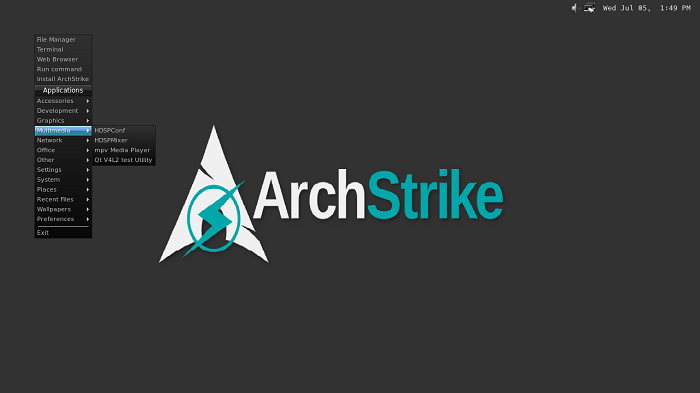
ArchStrike is a distribution for security professionals and researchers based on Arch Linux. ArchStrike provides an extra repository of security software and is available in Openbox and Minimal 64-bit builds. ArchStrike provides a live desktop environment based on the Openbox window manager.
Download Link : https://archstrike.org/downloads
SECTION 02
BackBox
 Open full-size image ↗
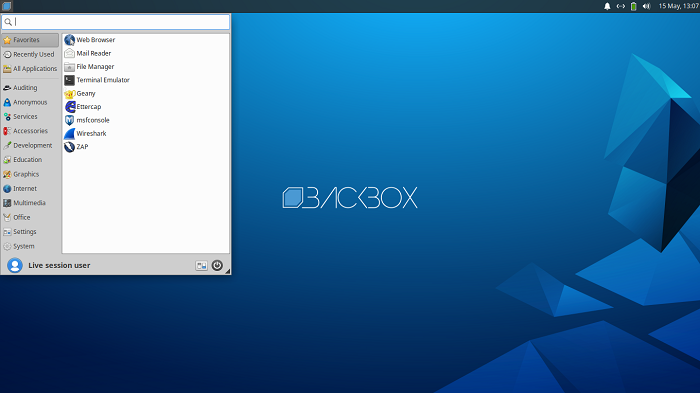
BackBox is a penetration test and security assessment oriented Ubuntu-based Linux distribution providing a network and informatic systems analysis toolkit. It includes a complete set of tools required for ethical hacking and security testing.
Download Link : https://backbox.org/download/
SECTION 03
Black Arch
 Open full-size image ↗
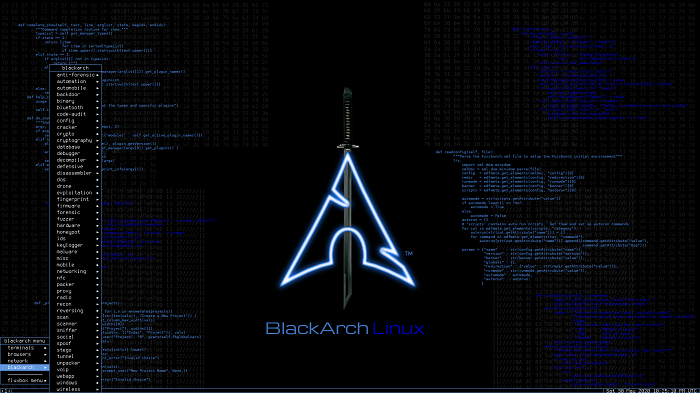
BlackArch is a penetration testing distribution based on Arch Linux that provides a large amount of cyber security tools. It is an open-source distro created specially for penetration testers and security researchers. The repository contains a large collection of tools that can be installed individually or in groups.
Download Link : https://blackarch.org/downloads.html
SECTION 04
Black Spider Windows 10
 Open full-size image ↗
Black Spider was a third-party customised Windows image with security tools. It is retained here as a historical directory entry. Use official supported Windows installation media and a properly licensed environment for new labs; this guide does not verify the custom image’s activation, integrity or maintenance.
Download Link : Official Windows Installation Media
SECTION 05
Bugtraq
 Open full-size image ↗
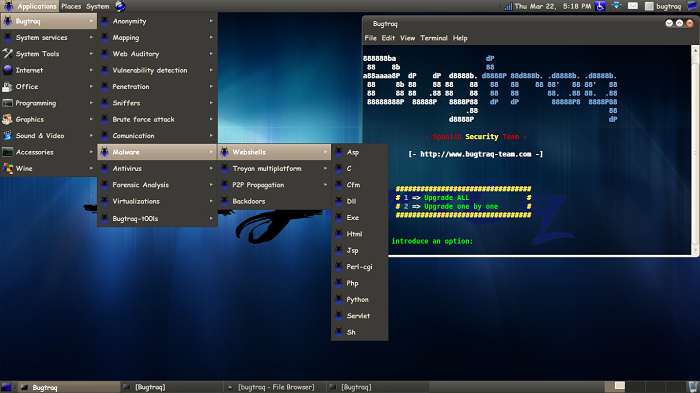
Bugtraq System was a security-oriented Linux distribution. It is distinct from the similarly named Bugtraq vulnerability-disclosure mailing list. Treat this as a historical entry and verify the project’s maintenance and image provenance before considering it for a lab.
Download Link : http://bugtraq-apps.com/
SECTION 06
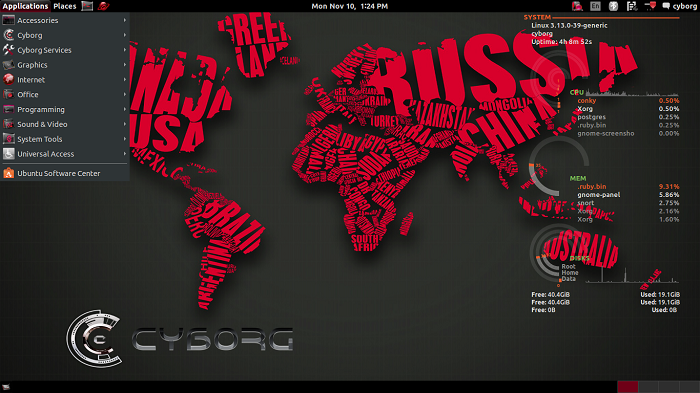
Cyborg Hawk
 Open full-size image ↗
Cyborg Hawk - a Linux distribution based on Ubuntu platform with a kernel and tools from its release for cyber security professionals, but can be used by everyone, however it is recommended to be not used by those who are unfamiliar with Linux as it contains major tools for penetration testing and cyber security purpose.
Download Link : cyborg-hawk-linux-v-1.1.iso
SECTION 07
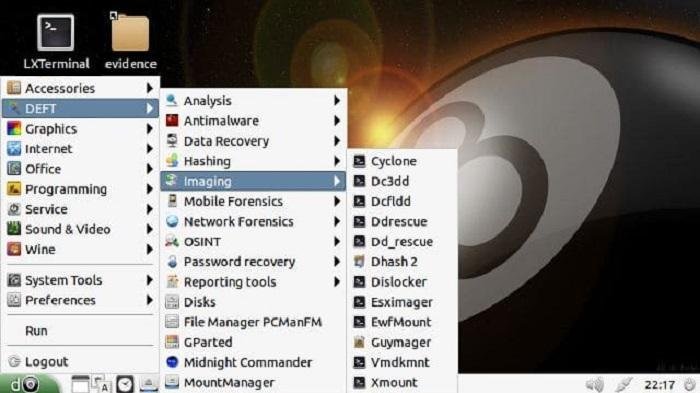
DEFT Linux
 Open full-size image ↗
DEFT (Digital Evidence & Forensic Toolkit) is a customised distribution of the Ubuntu live Linux CD. It is an easy-to-use system that includes excellent hardware detection and some of the best open-source applications dedicated to incident response and computer forensics.
Download Link : http://deftlinux.net/ - The former DEFT download mirror is unavailable. CAINE Forensic Environment
SECTION 08
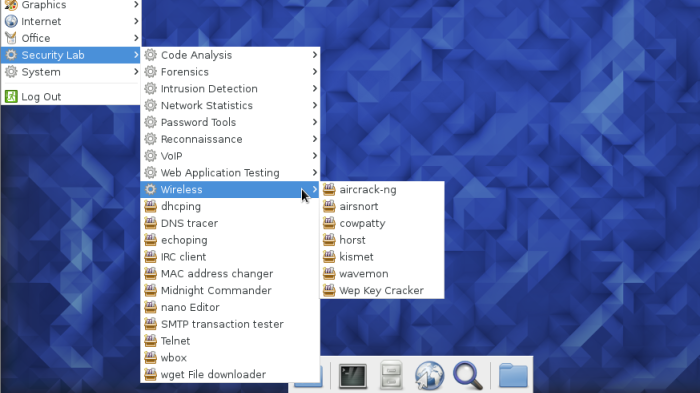
Fedora Security Spin
 Open full-size image ↗
The Fedora Security Spin is a live media based on Fedora to provide a safe test environment for working on security auditing, forensics and penetration testing, coupled with all the Fedora Security features and tools.
Download Link : https://fedoraproject.org/wiki/Security_Lab
SECTION 09
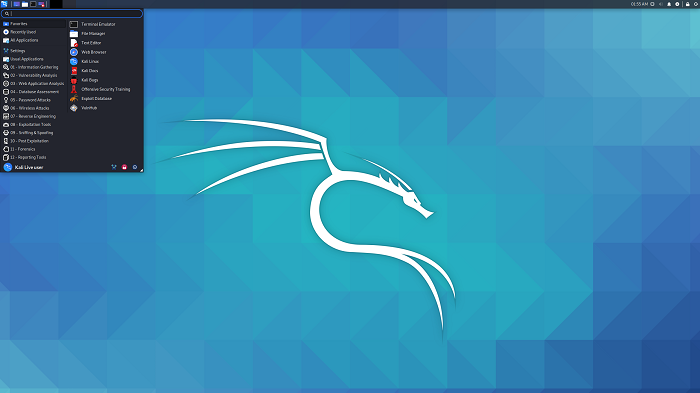
Kali Linux
 Open full-size image ↗
Kali Linux is a Debian-derived Linux distribution designed for digital forensics and penetration testing. It is maintained and funded by Offensive Security.
Download Link : https://kali.org/get-kali/
SECTION 10
Kodachi
 Open full-size image ↗
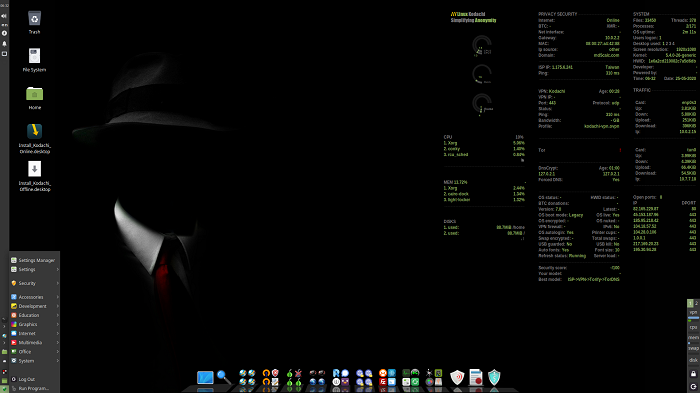
Linux Kodachi is a Debian-based distribution which can be run from a DVD or USB thumb drive. The distribution filters all network traffic through a VPN and the Tor network, obscuring the user's network location. The distribution attempts to clean up after itself, removing traces of its use from the computer.
Download Link : https://digi77.com/linux-kodachi/
SECTION 11
Network Security Toolkit
 Open full-size image ↗
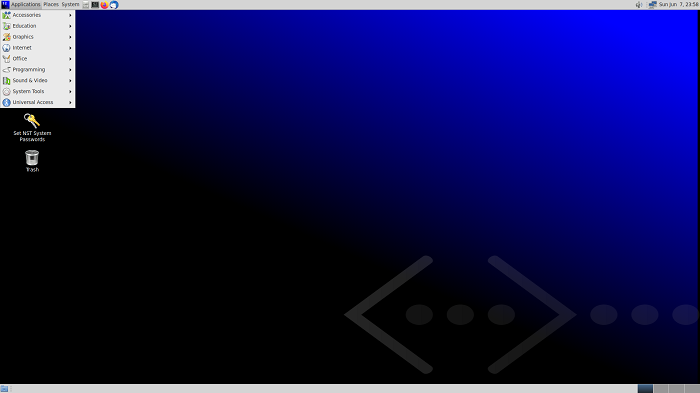
Network Security Toolkit (NST) is a bootable live CD based on the Fedora distribution. The toolkit was designed to provide easy access to best-of-breed open source network security applications and should run on most x86 platforms. The main intent of developing this toolkit was to provide the network security administrator with a comprehensive set of open source network security tools. What we find rather fascinating with NST is that we can transform most x86 systems (Pentium II and above) into a system designed for network traffic analysis, intrusion detection, network packet generation, wireless network monitoring, a virtual system service server, or a sophisticated network/host scanner.
Download Link : http://networksecuritytoolkit.org/
SECTION 12
Parrot Security OS
 Open full-size image ↗
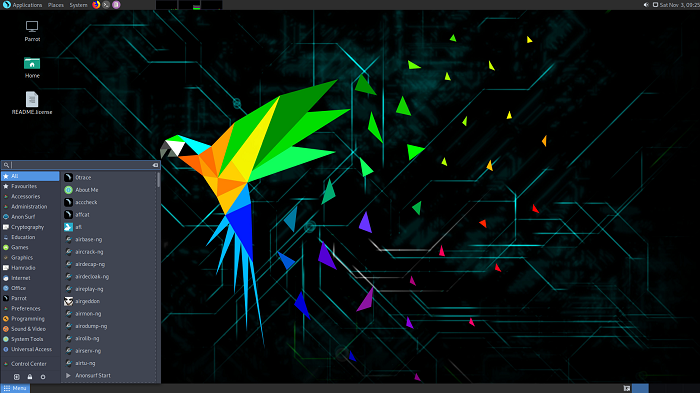
Parrot (formerly Parrot Security OS) is a Debian-based, security-oriented distribution featuring a collection of utilities designed for penetration testing, computer forensics, reverse engineering, hacking, privacy, anonymity and cryptography. The product, developed by Frozenbox, comes with MATE as the default desktop environment.
Download Link : https://parrotsec.org/download/
SECTION 13
Pentoo
 Open full-size image ↗
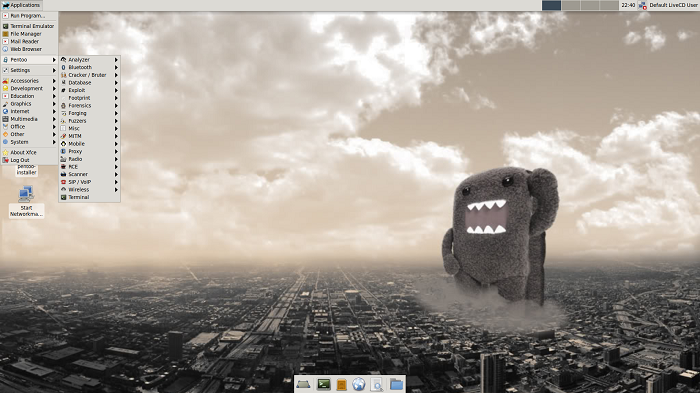
Pentoo is a Live CD and Live USB designed for penetration testing and security assessment. Based on Gentoo Linux, Pentoo is provided both as 32 and 64-bit installable live CD.
Download Link : https://pentoo.ch/downloads
SECTION 14
Qubes
 Open full-size image ↗
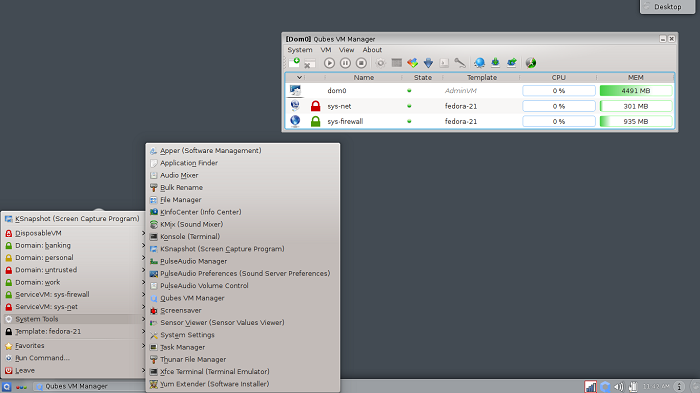
Qubes OS is a security-focused desktop operating system that aims to provide security through isolation. Virtualization is performed by Xen, and user environments can be based on Fedora, Debian, Whonix, and Microsoft Windows, among other operating systems.
Download Link : https://qubes-os.org/downloads/
SECTION 15
REMnux
 Open full-size image ↗
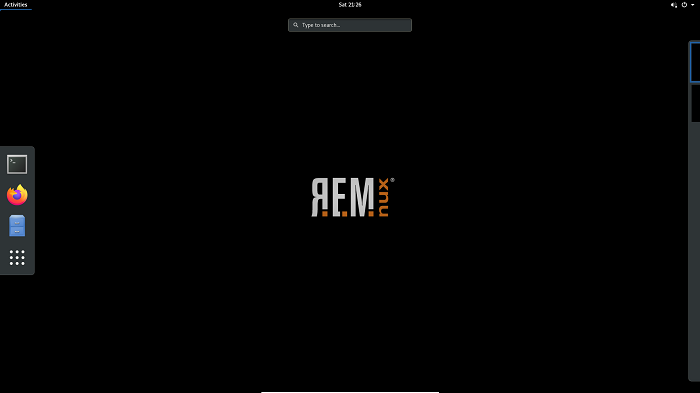
REMnux® is a Linux toolkit for reverse-engineering and analyzing malicious software. REMnux provides a curated collection of free tools created by the community. Analysts can use it to investigate malware without having to find, install, and configure the tools.
Download Link : https://remnux.org/
SECTION 16
Samurai Web Testing Framework
 Open full-size image ↗
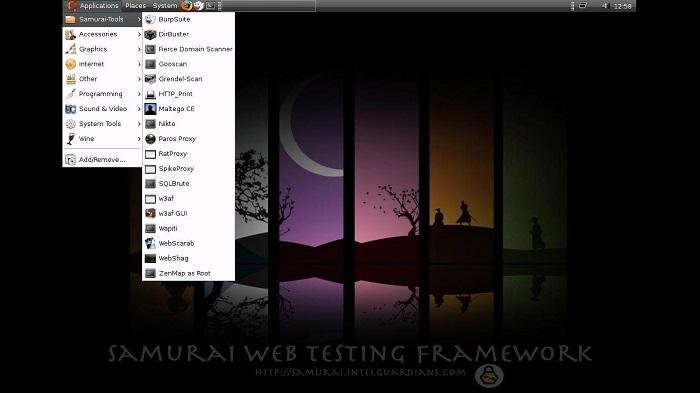
The Samurai Web Testing Framework is a virtual machine, supported on VirtualBox and VMWare, that has been pre-configured to function as a web pen-testing environment. The VM contains the best of the open source and free tools that focus on testing and attacking websites. In developing this environment, we have based our tool selection on the tools we use in our security practice. We have included the tools used in all four steps of a web pen-test.
Download Link : http://samurai-wtf.org
SECTION 17
Secure-K
 Open full-size image ↗
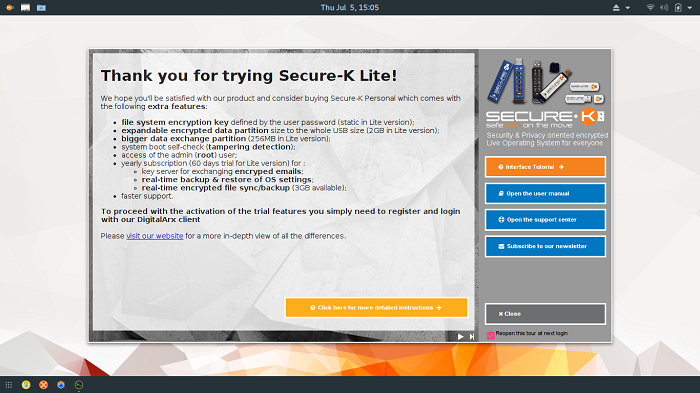
Open Secure-K OS is an operating system booting from a USB key in which you can safely create and store your personal and private data. It is a next generation live operating system following liveng patterns. Please refer to Resilient Linux, a fork of Open Secure-K OS which is actively developed.
Download Link : https://github.com/LumIT-Labs/open-securekos
SECTION 18
Tails
 Open full-size image ↗
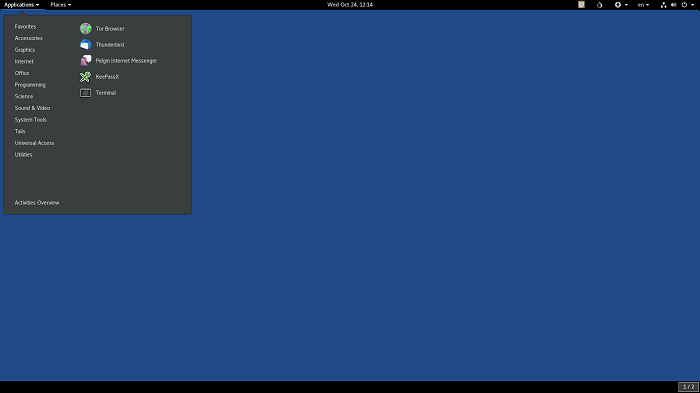
Tails, or The Amnesic Incognito Live System, is a security-focused Debian-based Linux distribution aimed at preserving privacy and anonymity. Tails routes supported applications through Tor and blocks other Internet connections by default. Its Unsafe Browser is a deliberate exception for tasks such as captive-portal sign-in: it does not use Tor and can reveal your real IP address. Use Tor Browser for anonymous browsing.
Download Link : https://tails.net/install/
SECTION 19
Trusted End Node Security
 Open full-size image ↗
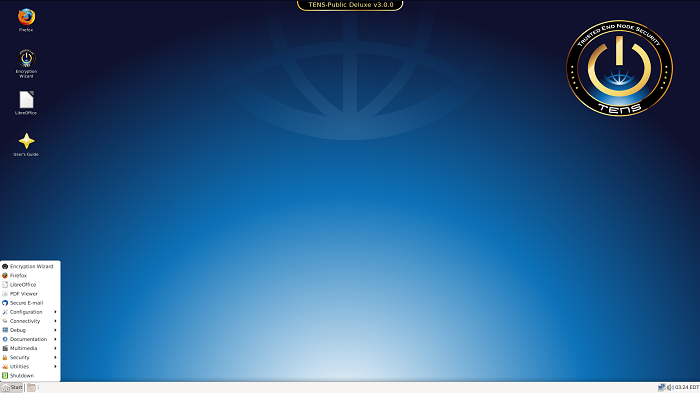
Trusted End Node Security (TENS), previously called Lightweight Portable Security (LPS), is a Linux-based live CD with a goal of allowing users to work on a computer without the risk of exposing their credentials and private data to malware, key loggers and other Internet-era ills. It includes a minimal set of applications and utilities, such as the Firefox web browser or an encryption wizard for encrypting and decrypting personal files. The live CD is a product produced by the United States of America's Department of Defence and is part of that organization's Software Protection Initiative.
Download Link : https://spi.dod.mil/download.htm
SECTION 20
Whonix
 Open full-size image ↗
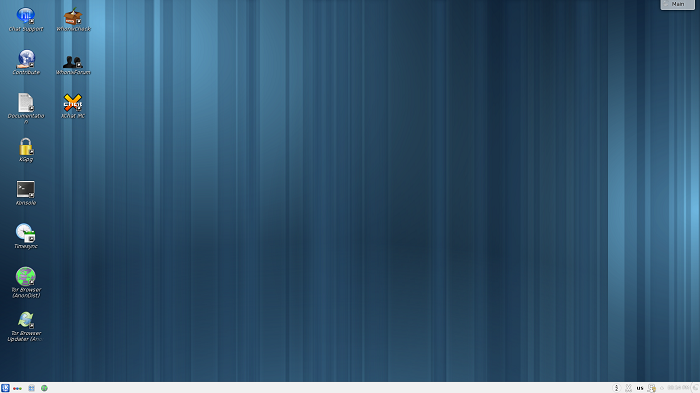
Whonix is a Debian GNU/Linux-based security-focused Linux distribution. It aims to provide privacy, security and anonymity on the internet. The operating system consists of two virtual machines, a "Workstation" and a Tor "Gateway", running Debian GNU/Linux.
Download Link : https://whonix.org
SECTION 21
WiFi Slax
 Open full-size image ↗
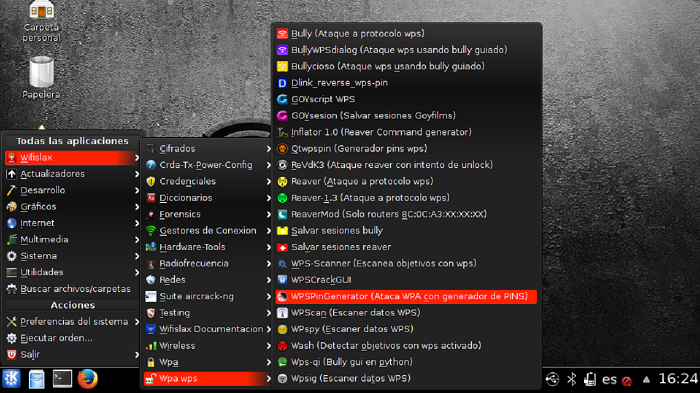
Wifislax is a Slackware-based live CD containing a variety of security and forensics tools. The distribution's main claim to fame is the integration of various unofficial network drivers into the Linux kernel, thus providing out-of-the-box support for a large number of wired and wireless network cards.
Download Link : https://wifislax.com
PRACTICE PROJECT
A Verified, Restorable Learning VM
Choose a system for a stated goal, record its official source, verify the image, create a VM, update it and test a clean snapshot restore.
PROJECT STEP 01
Choose the Job before the Distribution
For web development and shell fundamentals, a maintained general-purpose system is usually enough. For a pentesting course, a supplied Kali or Parrot VM can reduce setup work. For analysing suspicious files, use a purpose-built isolated analysis environment and understand its containment requirements before opening anything.
Privacy, anonymity, malware analysis and penetration testing are different goals. A system designed for one may be inconvenient or unsuitable for another. Write the job first: “learn Linux commands” is a clearer requirement than “install the strongest hacking OS”.
Try It Yourself
Write your main goal, required software and one constraint such as memory or host architecture. Choose a system against those requirements.
Check Your Understanding
Would a large preinstalled tool collection help a beginner understand file permissions, or could a normal Linux VM teach the same skill?
PROJECT STEP 02
General-Purpose Systems for the Foundations
Ubuntu, Debian and Fedora provide maintained general-purpose environments for programming, terminals and servers. Windows can support development directly or through WSL, while macOS provides a Unix-based development environment with its own tools and conventions. Use the platform that fits your hardware and intended work.
A VM is a complete guest environment with a virtualised hardware boundary. WSL integrates Linux workflows into Windows. A container shares a host kernel and is not the same isolation boundary as a full VM. These choices affect networking, service management and what you can safely test.
Try It Yourself
Compare a VM and WSL for your goal. Record one advantage and one limitation of the option you choose.
Check Your Understanding
Why should you not assume a container is a sufficient boundary for every unknown executable?
PROJECT STEP 03
Security-Testing Distributions
Kali and Parrot Security bundle tools for authorised assessments and labs. Use their official images and documentation; select the correct installer, VM or architecture-specific build. Start with a VM when you do not need direct hardware access. Wi-Fi exercises and some device work may require compatible hardware and additional setup.
BackBox, BlackArch, Pentoo and Network Security Toolkit are other names you may encounter. Their package model, intended audience and maintenance requirements differ. A beginner benefits more from a maintained environment they understand than from switching distributions every time a tool is mentioned.
Try It Yourself
Choose one environment and list the three tools you actually need for your next lab. Confirm each tool’s documentation and avoid installing unrelated bundles.
Check Your Understanding
Can you explain how the system receives updates and how you would recover after a broken configuration?
PROJECT STEP 04
Privacy and Analysis Have Different Requirements
REMnux focuses on tools for analysing malicious software and related artefacts. It belongs in an isolated analysis workflow, not beside your personal accounts and documents. Qubes OS uses compartmentalisation to separate activities, but has specific hardware and usability requirements. Read its compatibility and installation guidance before committing to it.
Tails and Whonix focus on privacy-oriented workflows and Tor-related separation. They do not promise that any activity becomes anonymous or safe: identity reuse, application behaviour and user mistakes still matter. Use official documentation to understand the threat model and limitations rather than assuming a distribution name provides a guarantee.
Try It Yourself
Create a purpose table: daily development, pentesting lab, malware analysis and privacy research. Assign an environment to each and describe the isolation it needs.
Check Your Understanding
Why might a malware-analysis VM need stricter network and file-sharing controls than a normal development VM?
PROJECT STEP 05
Download from the Project and Verify the Image
Use the official project’s download page, not a shortened link, repacked torrent or pre-activated Windows image. Confirm the architecture and image type before downloading. Compare the file’s checksum with a trusted value published by the project; where signatures are provided, follow the project’s key-verification instructions.
A checksum detects a mismatch relative to the value you trust. It does not prove authenticity if both the image and its checksum came from the same compromised or unofficial source. A verified signature can add provenance when the signing key has been independently established.
Calculate a Download’s SHA-256
# Linux, in the folder containing your downloaded ISO:
sha256sum your-downloaded-image.iso

# PowerShell alternative:
Get-FileHash -Algorithm SHA256 -LiteralPath ./your-downloaded-image.iso
Expected Result
Use the command for your operating system and replace the placeholder with the actual image file name. Compare the complete digest with the project’s published checksum; do not compare only the first few characters.
Try It Yourself
Keep the official download page, image name, architecture and verification result in your lab notebook. If verification fails, do not boot the image.
Check Your Understanding
What source do you trust for the expected checksum or signing key, and why?
PROJECT STEP 06
Create the VM and Check Its Boundaries
Allocate resources according to the guest’s documentation and what the host can spare. Use NAT for routine updates and an isolated virtual network for deliberately vulnerable targets. Do not expose a vulnerable lab VM directly to a public interface. Shared folders, clipboard integration and USB pass-through create additional connections to the host.
After installation, update the system, create a normal account and take a clean snapshot. A snapshot helps revert guest changes, but it is not an independent backup of the host or the only copy of your notes. Test recovery before relying on it.
Try It Yourself
Create a harmless marker file, take a test snapshot, change the file and restore the snapshot. Confirm the expected state and store your important notes separately.
Check Your Understanding
Which resources can the guest access on the host, and which of those integrations are actually needed?
PROJECT STEP 07
Understand the Older Directory
The original Academy also named ArchStrike, BlackSpider, Bugtraq, Cyborg, DEFT, Fedora Security Spin, Kodachi, Samurai Web Testing Framework, Secure-K, TENS and WiFiSlax. They remain useful search terms when reading historical tutorials, but that old list is not evidence that every project has a maintained, appropriate image today.
Before using an older project, verify its official maintenance status, supported packages, download integrity and compatibility with your hardware. Prefer a maintained general-purpose system when those details are unclear. This guide does not redistribute unofficial activated systems or treat abandoned download links as recommended installation sources.
Try It Yourself
Take one older tutorial and separate transferable concepts from version-specific installation steps. Replace unsupported assumptions with the current official documentation.
Check Your Understanding
Can you preserve the lesson without installing an unverified historical image?
PROJECT STEP 08
Keep the Lab Useful
Document the guest, network mode, installed tools and recovery process. Apply updates intentionally, then verify that the exercise still works. A deliberately vulnerable target is an exception for a contained learning purpose; it should not become your normal internet-facing workstation.
Finish with a small acceptance check: log in as the normal user, open a terminal, inspect your home folder, confirm the expected network exposure and restore a snapshot. The result is a dependable workspace for the Linux, Networking, CTF and Pentesting guides.
Try It Yourself
Write a one-page setup and restore guide. Have someone follow it on the same host without relying on your memory.
Check Your Understanding
Your environment is ready when it is verified, appropriately isolated, recoverable and understandable.
Check Your Finished Project
- The selected system matches a stated learning goal.
- The image comes from an official source and its verification is recorded.
- The network and host-sharing boundaries are understood.
- A restore has actually been tested.
Access and Offline Reading
The complete guide is free to read here. Linked providers may require accounts or offer paid features; check their own access conditions.
The guide text, examples and illustrations are included in this website’s local copy. External documentation, platform accounts, downloads and hosted labs need an internet connection.